Why Avery sheets dominate
Avery is the dominant brand of pre-cut card stock and label sheets across the US, UK and Europe. Microsoft Word ships with hundreds of Avery templates pre-loaded, so the workflow of choosing a sheet, opening the matching template in Word and editing in place is the simplest route to a printed card without buying design software. Most other vendors — including supermarket and stationer own-brand sheets — list Avery codes as “compatible with” on their packaging, which makes the codes a useful sizing shorthand even when you’re not using Avery sheets.
Business card sheet products at a glance
The four sheets below cover the bulk of Avery’s home-printable business card range. All four are 10-up on US Letter, with each card at the standard 3.5 × 2 inch size.
| SKU | Name / finish | Layout | Sheets per pack | Best for |
|---|---|---|---|---|
| 28371 | Matte white | 10-up, single-sided | 25 sheets (250 cards) | General-purpose; works in inkjet and laser |
| 8869 | Linen finish | 10-up, single-sided | 20 sheets (200 cards) | Cards where texture adds perceived quality |
| 8870 | Clean Edge, matte | 10-up, double-sided | 25 sheets (250 cards) | Two-sided cards; cleaner cut than perforated |
| 5371 | Classic matte | 10-up, single-sided | 25 sheets (250 cards) | Laser printers; standard go-to sheet |
The 8870 Clean Edge sheets use micro-perforation that breaks cleanly without leaving the toothed edge typical of older perforated card stock. If you’re printing two-sided, this is the format to choose — see the double-sided printing guide for setup.
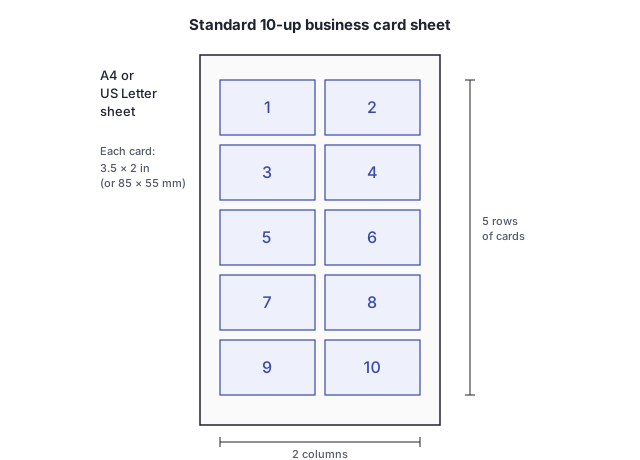
For non-US sizing, UK and European 85 × 55mm cards have Avery equivalents on A4 sheets under codes such as L7415 and L7414. The full breakdown of regional sizes lives in the standard business card sizes article.
Finding Avery templates in Word
Word’s built-in template library covers most current Avery codes. Two ways to reach them:
- From a blank document: Mailings > Labels > Options. Set Label Vendors to “Avery US Letter” (or “Avery A4/A5” for UK/European sheets) and scroll the Product Number list to the matching code.
- From the start screen: File > New, search for the Avery code (e.g. “8870”). If a template exists, it opens as a pre-formatted document with each card as an editable table cell.
If a code does not appear in Word’s list, download the template directly from avery.com — the product page for each sheet has a Templates tab with .docx files for Word and other formats.
Print alignment tips
Print one test sheet on plain paper before committing real card stock. Hold the printed sheet over an unprinted Avery sheet against a window or light box; if the cells line up within a millimetre or two, you’re good. If the print drifts, set the printer’s paper size explicitly to “Letter” (or “A4”) rather than “Auto” — a common cause of vertical drift on home printers.
Feed card stock one sheet at a time through the manual feed tray rather than the main paper cassette. Heavier weights jam the rollers on most home printers when stacked.
A note on Avery codes: Avery occasionally renames or replaces SKUs as ranges get refreshed. If a code referenced here doesn’t appear in your Word template chooser, check avery.com for the current equivalent — the underlying card size is the durable detail.