Microsoft Word ships with business card templates and supports the full Avery range out of the box. For most home and small-office printing, this is the path of least resistance — the templates already match standard card sheets, and the menu paths are short.
Where to find templates in Word
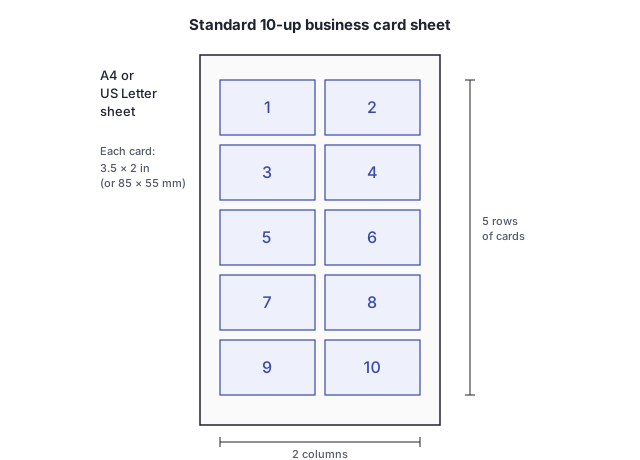
In Word for Windows or Mac, File > New opens the template gallery. Search for “business cards” to surface the built-in designs, including Avery-compatible 10-up layouts on US Letter or A4. They open as standard .docx files with the card layout drawn as a borderless table — each cell is one card.
For more options, Mailings > Labels > Options lists hundreds of Avery products by code. Selecting a code (28371 for US 3.5 x 2 inch business cards, for example) creates a blank document at the correct dimensions with the right number of cells.
Opening a downloaded template
Templates downloaded from Avery or third-party template sites usually arrive as .docx. Open them through File > Open rather than double-clicking from a browser, which can lock the file in protected view. If the template opens read-only, click Enable Editing at the top.
The template displays as a table or as a text-frame layout. Both are editable, but tables are more forgiving — cells stay aligned even after font or content changes.
Editing for your details
Replace the placeholder text in the first cell, then copy the cell contents and paste into the remaining nine. This is faster than editing all ten manually and keeps spacing consistent across the sheet.
For logos: place the cursor where the logo should sit, then Insert > Pictures > This Device. Resize by dragging a corner handle. If the image floats and disrupts the cell, set the wrap option to In Line with Text via the layout icon next to the image.
Save the file under a new name once one card is complete, before populating the rest of the sheet — otherwise a wrong keystroke can wipe the work.
Printing on Avery sheets
Load the Avery sheet into the manual feed tray rather than the main drawer — heavier card stocks (200gsm and up) misfeed from standard trays. Set the paper size in File > Print to match the sheet (US Letter or A4). Print one sheet on plain paper first, hold it against an Avery sheet at the light, and check that the print falls within each card boundary. Adjust margins if anything drifts.
Common issues
Misalignment usually traces to the wrong paper size or to “Fit to Page” scaling — turn scaling off in print settings. Text drift across cells happens when one cell’s content overflows; check each cell before printing the full sheet.
For double-sided cards, see how to print double-sided business cards at home. The Avery business card sheets guide lists which codes match which sheet sizes. The Google Docs alternative is covered in how to create business cards in Google Docs, and the same Word workflow applied to event badges sits at free printable name badge templates for Word.